Usage
This page explains the basic setup flow for S3Dock.
Before you start
S3Dock does not create a storage account for you. Prepare an object storage bucket and credentials from your provider first.
You usually need:
- Endpoint URL
- Bucket name
- Access key ID
- Secret key
- Region, if your provider requires it
- Path-style URL setting, if your provider requires it
For Cloudflare R2, MinIO, Wasabi, Backblaze B2, DigitalOcean Spaces, Amazon S3, Google Cloud Storage, and many other S3-compatible providers, the app can start from a preset and then you can edit the values.
First launch
When no storage connection is configured, S3Dock opens with a simple setup screen.
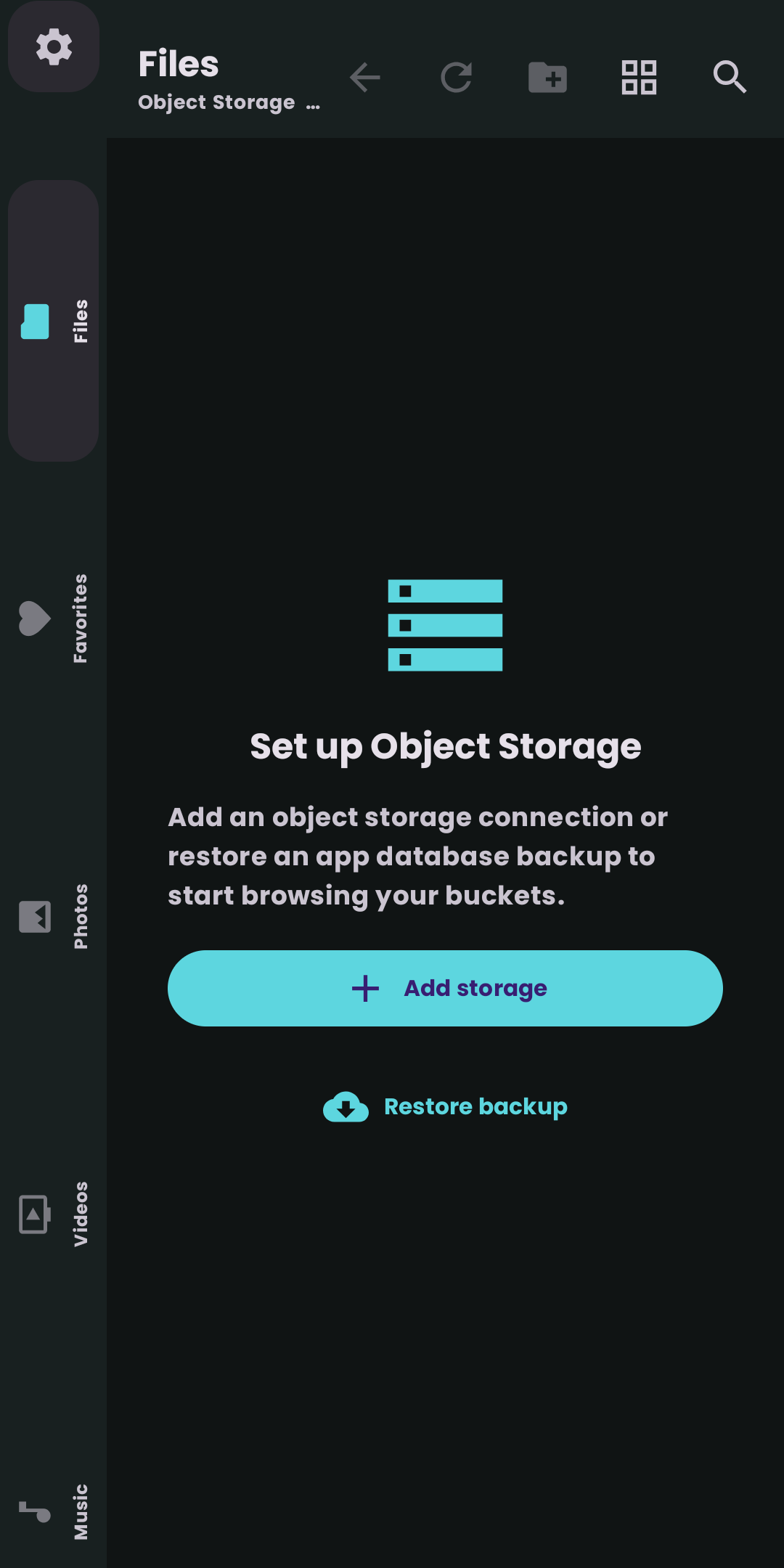
Choose one of these actions:
- Add storage: open Storage settings and enter a new provider or bucket.
- Restore backup: import an app database backup created by S3Dock.
Add a storage connection
Tap Add storage on the first screen. S3Dock opens Settings > Storage.
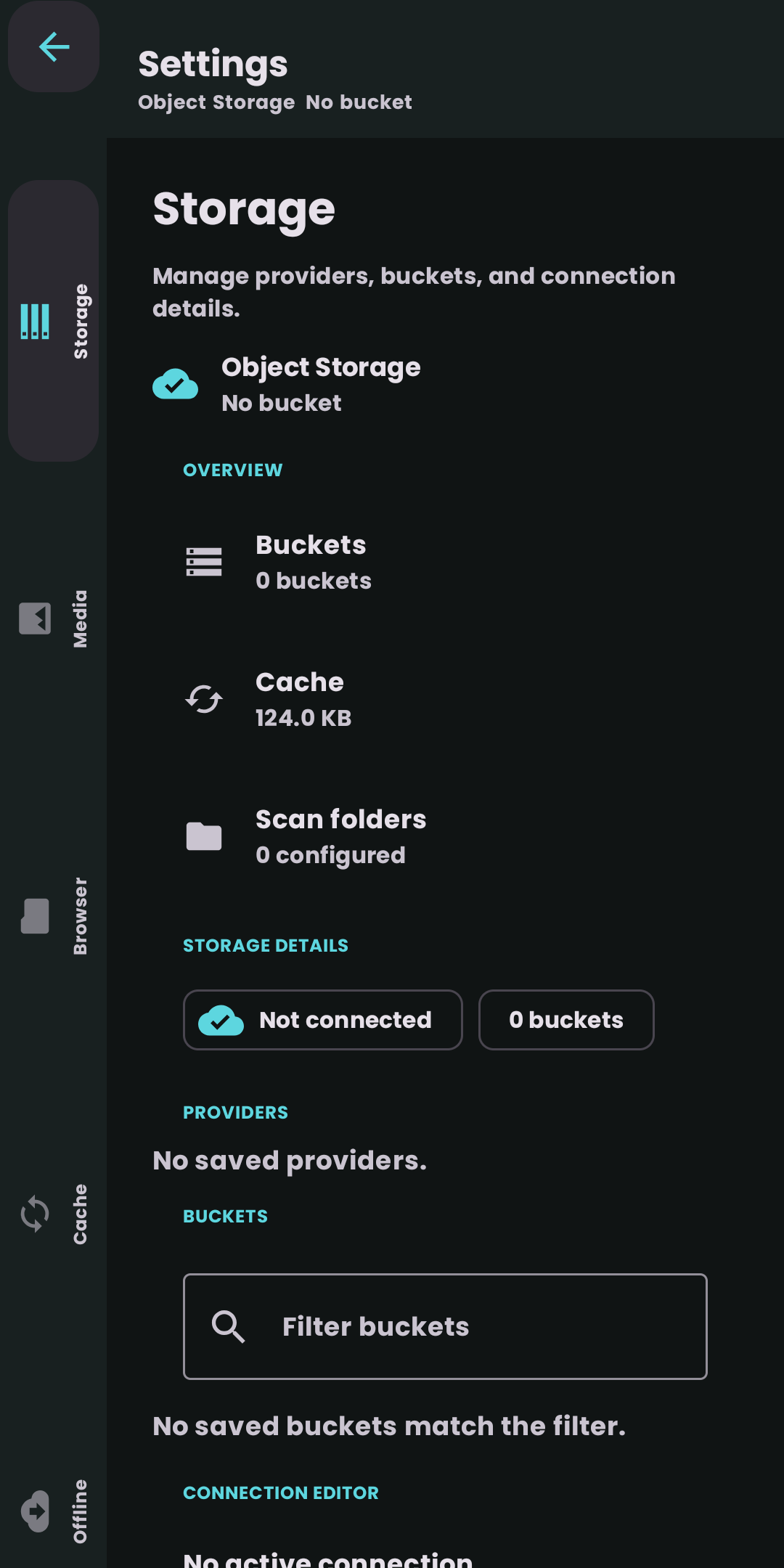
If this is a fresh install, the page will show that no provider or bucket is saved yet.
Choose a provider preset
Scroll to Connection editor and choose a provider preset. You can search providers when the list is long.
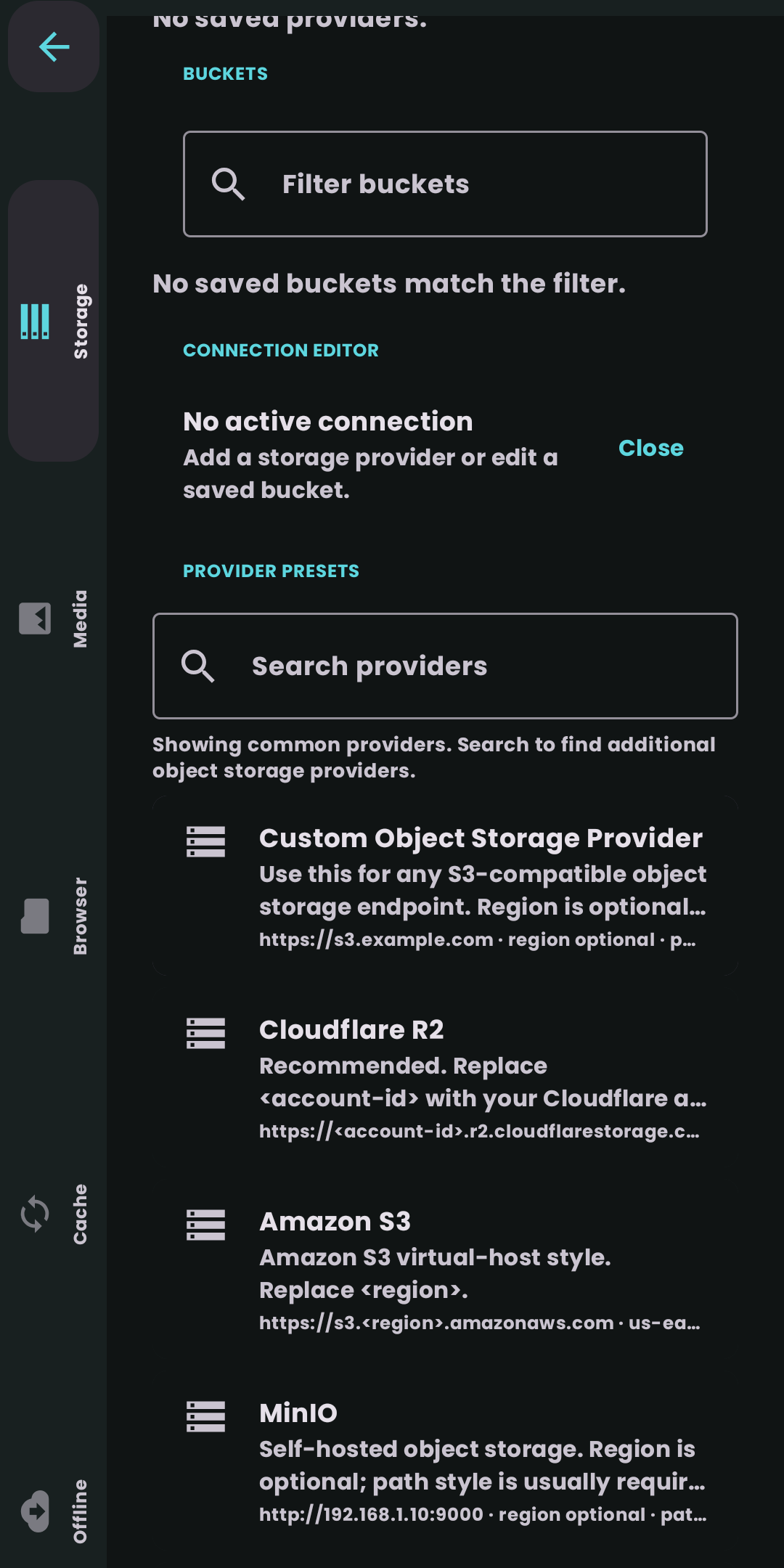
Use Custom Object Storage Provider when your provider is S3-compatible but not listed.
Enter connection details
After choosing a preset, fill in the connection fields.
- Enter the endpoint.
- Enter the bucket name.
- Enter the access key ID.
- Enter the secret key.
- Set region only when needed.
- Enable path-style URLs only when needed.
- Tap Save and Connect.
S3Dock trims accidental spaces and line breaks from connection fields, but you should still copy values carefully from your provider dashboard.
Restore from backup
Use Restore backup on the first screen when you already exported an app database backup from S3Dock.
Database backup is intended for app migration. If you choose a plaintext backup export, connection credentials are included in plaintext so they can be restored on another device. Store that file carefully and delete it when it is no longer needed.
Browse files
After a successful connection, the Files tab shows the current bucket folder.
Common actions:
- Use search to filter the current folder.
- Use the view button to switch between list, grid, and masonry views.
- Use sort to change name, modified date, or size order.
- Tap folders to navigate.
- Tap images, videos, or music to open the media viewer.
- Use the plus button to upload files, upload folders, create folders, or import from camera.
File operations
Add content
Use the plus button in the Files tab to:
- Upload file: pick one or more files with the Android document picker.
- Upload folder: pick a local folder; S3Dock plans and uploads its contents while preserving the folder structure.
- Create folder: make a new empty folder in the current prefix.
- Import from camera: capture or pick media and upload it directly.
Select and act on multiple items
- Long-press a file or folder to start selection, then drag across items to select a range.
- With items selected, a selection toolbar appears with Save, Move, and Delete.
- Tap the selection again to open the per-item action menu.
Per-file action menu
Open the more menu (the item’s action button) to:
- Add favorite / Remove favorite
- Rename (implemented as copy followed by delete)
- Move to another folder or bucket
- Open with another app using a short-lived signed URL
- Save to Downloads (the configured download destination)
- Keep Offline / Remove from Offline
- Delete
Move can relocate files and folders within the same bucket or to a different saved bucket. Large moves run as background transfers and appear in the Transfers tab.
Favorites
Tap Add favorite from a file or folder’s more menu to pin it to the Favorites tab. Favorites are stored locally on your device and work across the media tabs and Files. Use Remove favorite from the same menu to unpin an item. The Favorites tab supports search, sort, and the same list/grid/masonry views as Files.
Media libraries
Photos, Videos, Music, and Documents can scan selected bucket folders. If no scan folder is configured, open the tab and choose a bucket folder to scan.
Music also supports a smart library mode for songs, artists, albums, and folder-based browsing when metadata is available.
Music and audio playback
Tap a song in the Music tab (or any audio file) to start playback. A mini player appears at the bottom of the screen with previous, play/pause, and next controls, plus an options button. Tap the mini player to expand it into the full player with seek and artwork.
Playback continues in the background through a foreground media service, so audio keeps playing after you leave the app or lock the screen. Notification controls let you pause, skip, and stop from the lock screen.
When Smart Music Library is enabled (Settings > Media), the Music tab groups your scanned audio by Songs, Artists, Albums, and Folders, using tags parsed from small Range requests. Tags are read from the scan folders configured for Music; if none are set, choose a bucket folder from the Music tab or Settings.
Offline files and cache
Use Keep Offline from a file menu to store a file locally for later use. The Offline tab lists saved files. Cache limits and clear actions are available from Settings.
Transfers
Uploads, downloads, and moves run as background transfers and are listed in the Transfers tab. Each transfer shows its name, direction (upload, download, or move), progress, and byte counts.
Transfer states:
- Queued: waiting to start.
- Running: actively transferring, with a live progress bar.
- Stopped: paused by you.
- Completed: finished successfully.
- Error: failed and can be retried.
Controls:
- Stop all: pause every running transfer.
- Resume: retry stopped or failed transfers.
- Clear finished: remove completed, failed, and stopped entries from the list.
- Per-item Stop (while running), Retry (while stopped or failed), and Clear (once finished, failed, or stopped).
Progress and completion are also shown through Android notifications when permission is granted. Keep Offline downloads use Wi-Fi-only constraints by default; change this in Settings > Offline & Downloads.
Managing multiple storage accounts
S3Dock can store more than one provider or bucket. Settings > Storage lists your saved connections as chips showing the provider and bucket.
- Tap a saved connection to make it the active account. The browser reloads at that bucket’s root.
- Add storage creates a new connection from a preset or custom endpoint.
- Edit a connection to change its endpoint, bucket, keys, region, or path-style setting.
- Delete removes a saved connection from the device. Other saved connections are unaffected.
Switching accounts does not move files; it only changes which bucket the app browses and transfers to.
Settings
Open Settings from the tab bar. The main Settings screen groups options into sections; tap a section to open its options.
Appearance
- Language: choose the app language (System, English, 日本語, and others).
- Color mode: System, Light, or Dark. In Dark mode you can also pick a Dark palette.
- Thumbnail roundness: square to fully rounded corners for media thumbnails.
- Font: app font family.
- Settings font size and File name size: adjust text scaling.
- Grid columns and Masonry columns: default column counts for those views.
Browser
- Folders first: keep folders above files while sorting.
- Show file details: display size and modified date in lists.
- Folder previews: show up to three previewable files on folder tiles in grid and masonry views (increases bucket API calls).
- Always show left rail: keep the navigation rail visible instead of auto-hiding it.
- Grid columns / Masonry columns: layout density.
- Default tab: which tab opens on launch.
- Left menu order: reorder the navigation tabs.
- Default view by tab: choose list, grid, or masonry per tab.
- Default sort: name, modified date, or size.
Cache
- Usage: total cache plus a breakdown of images, thumbnails, video stream, and database.
- Limits: maximum size for image cache, thumbnail cache, video cache, and database cache. The app evicts the least recently used items when a limit is reached.
- Maintenance: clear all cache, or clear images, thumbnails, or video stream individually.
Offline & Downloads
- Download destination: choose where Save to Downloads writes files (defaults to the system Downloads folder).
- Download only on Wi-Fi: apply Wi-Fi-only constraints to Keep Offline downloads.
- Clear download history: remove Offline-tab metadata without deleting local files.
Media
- Smart Music Library: enable Songs/Artists/Albums/Folders grouping in Music.
- Media library: view and manage scan folders for Photos, Videos, Music, and Documents. Add a bucket folder as a scan target, or remove one. Each category can have multiple recursive scan targets.
Network / Object Storage
- Signed URL hours: how long generated preview, playback, and share URLs stay valid (1–24 hours).
- Range check: verify that signed video URLs support HTTP Range requests for seekable playback.
- Allow insecure HTTP endpoints: permit
http://endpoints for trusted local networks only. HTTPS is required by default. - Confirm external app open: show a warning before sharing a signed URL with another app.
Import / Export
- Import settings: restore browser defaults and app preferences from a JSON file.
- Export settings: save preferences to a JSON file; you can optionally include access keys and secret keys.
- Backup app database: export the full local database (credentials are written in plaintext so restore works).
- Restore app database: replace the current database from a backup file.
About
Version and a short description of S3Dock.
Settings import and export
Besides the full database backup described in Restore from backup, S3Dock can export and import just your preferences:
- Export settings writes a JSON file with your browser defaults, view/sort choices, appearance, and cache limits. Turn on “include access keys” only if you want credentials in the file.
- Import settings reads that JSON to apply the same preferences on another device or after a reinstall.
Use the database backup when you also need your favorites, offline pins, scan folders, and download history. Use settings import/export when you only want to copy configuration.
Security notes
- HTTPS endpoints are recommended.
- HTTP endpoints should only be used on trusted local networks.
- External apps receive a short-lived signed URL when you choose Open with.
- Do not share exported backups that include credentials.
Related pages
- Troubleshooting & FAQ: common setup problems and how to fix them.
- Supported file formats: which image, video, audio, and document types S3Dock recognizes.